


An Excellent Alternative to Adobe Reader
PDF-XChange has some very nice features not found in Adobe Reader, but where it matters it follows the familiar shortcuts and layout of the established market leader. It is very customisable too, so if you don’t like the defaults, many things can be modified.
Online help is available.
The developers continue to add new features and fix bugs, releasing regular updates. Their responsiveness to users via their support forum is exemplary. Unlike other software companies, they don’t rely primarily on other end-users to provide support. Reported bugs are often fixed in the next release.
The free PDF-XChange Editor replaced the free PDF-X-Changer Viewer several years ago.
I am still finding my way around the host of new features and changes, but I will update this page when I have had time to use the new version more and familiarise myself with the changes.
The browser plug-in no longer works in modern browsers, which have moved away from NPAPI support. That section of my review has therefore been removed.
- Full History of Changes
- Multiple Bug Fixes
Changes Since build 10.8.0.408
- Multiple Bug Fixes
The professional and free versions are the same program. Features in the free version, such as adding comments and highlighting, can be used without any watermark being added. The professional features are also available in the free version, but documents are saved with a watermark until it is registered. A warning dialog is shown if you attempt to use the professional features in the free version. Either cancel the action, or don’t save the document to avoid adding watermarks. The Pro features can be hidden in the free version from the File menu, Preferences (shortcut: Ctrl+K), Registration.
- Headers and Footers can be Added, Managed, or Removed (Pro)
- Pages can be Inserted, Moved, Swapped, Replaced, Deleted, Cropped, Resized, or Split (Pro)
- Bookmarks can be Added, Generated, Managed, Exported, or Removed (Pro)
- Watermarks can be Added, Managed, or Removed (Pro)
- Backgrounds can be Added, Managed, or Removed (Pro)
- Bates Page numbering can be added (Pro)
- Digital Signing: Add, Certify, Timestamp, and Clear (Pro)
- Content Editing: Edit Content, Add Text and Images, Transform Selections, Create from Document, Insert Scanned Pages, and Redaction, (Pro)
- QR Codes and Barcodes can be Generated and Added (Pro)
- Attachments: New, Edit, and Annotate (Pro)
- Layers: Add New Group and Add New Layer (Pro)
- Enhanced OCR (Pro)
- Form Editing: (Pro Plus)
- Page Ranges can be defined (Free)
- Images can be added as stamps (Free)
- Pages can be extracted to a new PDF file (Free)
- Split Document by Bookmarks or Every n-pages (Free)
- Replace pages with pages from another PDF file (Free)
- Rotate Pages (Free)
- OCR Pages (Free)
- Spell Check (Free)
If a document is not secured, or if you know the password, security settings can be changed to allow or disallow opening, commenting, printing, copying, etc.
In the Viewer, security options can be changed in Preferences, in the Editor, they can be changed in Document Properties, Security.
 When a secure document is open in the Editor, a padlock icon is shown on the Tab Bar indicating that there are some restrictions on modifying the content. No preview thumbnail is shown for PDF files that need a password to be opened.
 Open the Search Pane to find text in the current document, all open documents, or documents in folders on your hard drive. In my tests, PDF-XChange Editor is much faster than the latest Adobe Reader DC.
The hardware used was an AMD A10-6800K, 8 Gb on Windows 10 64-bit.
Searching for a word in a 1,180 page document
- PDF-XChange Editor 7.0.327.0 found 710 entries in < 1 second
- Adobe Reader DC 2019.008.20074 found 710 entries in 14 seconds
Searching for a word in 11 folders of 371 documents
My personal collection of PDF documents, some of which may contain the search string several times, while others may not contain it at all. Most of the test set doesn’t change.
- PDF-XChange Editor found 3,832 entries in 116 documents in 1:59 (Page Text, Comments, Bookmarks, and Form Fields)
- Adobe Reader DC found 3,896 entries in 120 documents in 7:45
 There is a wide range of options for advanced search (shortcut = Ctrl+Shift+F) of multiple PDF documents as the menu on the right shows.
The Proximity search lets the user specify whether to find only adjacent words, words in the same paragraph, page, or document.
 To highlight the first, second, and subsequent words in the search string that have been found, the Coloured Search Results option displays them in different colours. This may be overkill for ordinary users, but for those who have to trawl through large collections of PDF files it may be very useful. It’s certainly a big improvement on the Advanced Search in Adobe Reader, though the colours need some refinement.
Shortcuts F4 and Shift F4 will find the next and previous search results. These can be customised if you prefer to use the Adobe Reader defaults of Ctrl G and Ctrl Shift G. Personally, I find F4 more intuitive since F3 and Shift F3 are used for find in page. I never noticed the Adobe Reader shortcuts before.
PDF-XChange can find ligatures used in OpenType fonts. There is an option in Preferences, Page Text to preserve ligatures on copy. If the checkbox is cleared, æ (for example) will be copied as ae.
The Editor can read selected text using a computer generated voice with a male or female American accent, or a female British accent. It works well on standard English text, but it fails to recognise non-standard ligatures, and foreign words are hard to understand. The volume, pitch, and speed of reading can all be changed in preferences (Ctrl+K) and shortcuts can be assigned to “Read Select Text Out Loud” and “Stop Reading.” I assigned shortcuts “r,” and “Shift R” respectively for easy of use.
The process takes a few minutes — perhaps 15 seconds per page — but the resulting document is then searchable without any obvious visible change to the document, and without much increase in file size. A typical 20 page PDF of 5.18 Mbytes was 5.4 Mbytes after OCR and saving as a new document. Recognition was accurate, except on some small text. This feature is available in the free version of the viewer and the editor. No watermarks are added when using it.
 Scanned PDF files can be deskewed before using the OCR feature, which improves recognition. I successfully used this feature to deskew a scanned PDF of a book in Burmese. Although the Burmese text is obviously not recognised by the OCR engine (that would be too much to expect), it still managed to deskew the Burmese text, while the header in English text became skewed.


Custom search engines can be added, manually sorted, or deleted. The last used search is shown on the context menu, with other searches being available on a submenu.
 To add a custom search, search for the word “TEST” in your desired search engine, copy the URL and paste it into the New search dialog from Preferences, Search Providers, New…
This is a zoom window that shows a magnified view of the page beneath a transparent rectangle that can be dragged around the page.
Click the buttons to change the current zoom level. Click on the camera icon to take a snapshot of the zoomed area. The loupe window can be resized and positioned anywhere on the monitor, even outside of the PDF-XChange window, so if you have a wide-screen monitor or a dual monitor setup you may find this tool even more useful.
Resizing the loupe window simultaneously resizes the transparent rectangle. Resizing the rectangle changes the zoom level in the loupe window. Moving the transparent rectangle pans the view in the loupe window.
 The
The This is another very convenient way to view magnified documents. It is the inverse of the loupe.
Zoom in to the main window so that the page is bigger than the window, then the Pan and Zoom Tool shows a thumbnail of the page, with a transparent rectangle that can be dragged around to pan the document in the main window. The Pan and Zoom Tool window can be resized and positioned anywhere on the monitor or on another monitor.
It has buttons for navigating the document pages, zoom buttons, and a drop list for selecting the zoom level. The Camera icon will take a snapshot of the zoomed area. Resizing the transparent rectangle will change the zoom level in the main document window and simultaneously change the viewed area.
The Toolbars on both the Loupe Tool window and the Pan and Zoom Tool window can be docked by clicking the up arrow and the text labels can be hidden/shown by customising the toolbars.

In the Recent Files list hovering the mouse cursor over a filename displays a preview thumbnail of the file with information about the file. If you have many files with similar names, this may help to find the right one.
In the Browse Files dialog, the PDF file size and date are shown in the tooltip, and the entire document can be viewed in the Preview Pane if it is enabled in Windows Explorer.
Page Thumbnails
Page thumbnails can be shown in a panel at any edge of the screen or in a floating window. The thumbnails can be resized and displayed in several columns if you have the space to spare. Shortcut Ctrl+T will show/hide the thumbnails panel.
The thumbnails panel can be moved to a second monitor, and maximised by double-clicking its title bar for an overview of the entire document, allowing quick and easy navigation to any page by clicking the thumbnails.
 To dock a floating panel again, drag it by its title bar and drop it onto the Arrow icon at left, right, top, or bottom of the PDF-XChange window. Wherever the thumbnails panel is positioned the Ctrl+T shortcut will show or hide it.
At the top of the thumbnails panel is a toolbar with buttons for zooming, and printing, rotating, or deleting selected pages. The properties button shows the properties of the selected page. The Options button offers more actions for working with documents.
 When viewing PDF documents in single page or facing pages modes, when one drags on the scroll handle, a thumbnail of the current page pops up by the side of the scroll bar showing the page that will be displayed when the mouse button is released.
The orange rectangle shows the view port for the current zoom level.
This is another neat feature in PDF-XChange that helps when browsing long PDF files.
Although of limited usefulness when browsing reams of plain text unless you know the page number that you are seeking, if documents contain at least a few pictures, tables, or illustrations, it is an aid to quickly finding a page without using precious space by opening the thumbnails panel on a single monitor.
The thumbnails do not appear when viewing documents in continuous modes.
Windows Explorer Thumbnails
The Windows shell extension to display thumbnails of PDF files in Windows Explorer. When using thumbnail mode in Windows Explorer, the thumbnails are shown instead of PDF document icons. The installation program offers an option to install the Shell Extension for viewing thumbnails in Windows Explorer. Installation of this extension is the default, but if you decide not to install it, you will lose the option to view PDF thumbnails in Windows Explorer.
You can add sticky notes, text boxes, lines, arrows, shapes and text to PDF documents. You can highlight, strikeout, or underline selected text. Comments and mark-up are saved with the document and can be modified or deleted later. No advertising watermarks are added to the PDF file when you save comments and markup.
Latin Extended characters can be used in document markup. If, like me, you need to work in languages other than English, this is very useful.
Undo and Redo text editing and annotation changes with the usual shortcuts (Ctrl+Z, Ctrl+Y) or use the toolbar buttons. Copy and paste annotations within the same document or between documents.
Clone existing comments by holding down the control key and dragging them to a new location. This currently seems to work with most annotation apart from sticky notes.
 Sticky notes will be labelled with the user log-in name by default. The name can be changed by adding a name under log-in name in Preferences, Identity. The properties of comments and markup can be modified and saved as the default. To save text defaults, right-click in text, and select “Text Formatting,” “Save as Default Style for Text Formatting.”
Display of author name and creation date of comments can be disabled in Preferences, Commenting.
Other users can reply to comments or sticky notes using their own ID or name, and a different colour. Comments can have its opacity reduced so that the original PDF text is still legible behind the comments when they are open.
Double-click any markup to add a comment about it. A new sticky note comment with the same colour as the markup will point to it.
All comments show a tool tip when the user passes the mouse over the markup.

 Markup has control points. For example, the callouts have one where the arrow joins the text box. Drag that to move the arrow to any side of the text box. Drag the other control points to reshape the text box, or to move the arrow. The cursor will change when it is positioned over a control point. Use the rotate handle to rotate the markup, holding down the shift key to constrain rotation by 15° increments. Use the cursor keys to reposition text markup, or click and drag the outline (red in the screenshot).
Toolbar icons have a tool tip that shows the current default properties for the commenting tools. Right-click on the markup to edit its properties. The defaults for all document markup can be edited in the Comments Style Palette, which can be shown from the Comments menu.
From the Properties Pane, blend modes for markup can be selected. This will change the colour of markup when it is overlayed on different coloured backgrounds.
The stacking order of markup can also be changed from the context menu.
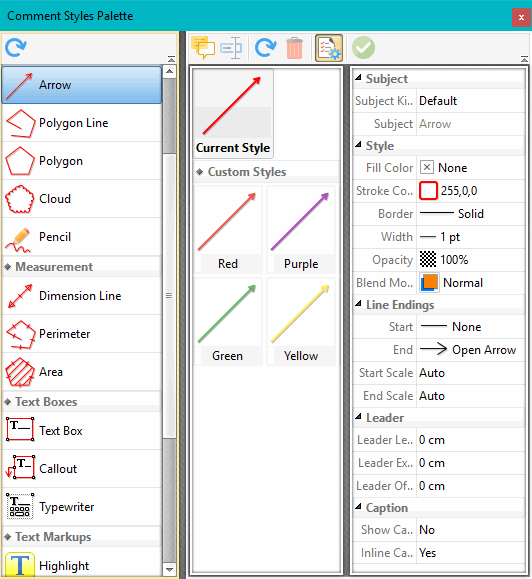 In the comments style palette, select a tool from the list on the left, click on the large current style icon, and change the properties from the properties pane at extreme right of the styles palette. The palette and the panes are all resizable.
Like all toolbars, those in the comment styles palette can be docked to save space or prevent accidental use. Open them using the down arrow.
To add further markup to existing markup, e.g. to underline text that is already highlighted, hold down the shift key while using the underline tool.
A list of comments and markup in your document is shown in the comments pane (Control M to show/hide this). Use the pane to find comments, delete them quickly, or change their properties.
N.B. Comments don’t normally print, while markup does if you have not changed the default option to print document and markup on the Print dialog. Use text boxes or callouts to add markup that are meant to be printed. Comments can be printed by using the advanced print options. They will be printed as they appear on the screen, whether they are opened or closed. Their transparency for printing can be set in the advanced options.
Managing Comments

 From the Comments pane one can selectively show or hide comments in a document. The status submenu records the status of the comments.
Comments can be flattened using the Pro version, and summarised using the free version. The output format can be PDF, Rich Text Format (*.rtf), plain text, or HTML. Filenames can be created automatically from the PDF file name.
When printing a PDF document, there are options to print the document only, document and markup, document and stamps, or form field data only. Comments can be exported as an XFDF data file, or summarised as a Rich Text File. In the Comments Pane, comments can be sorted in order of page, type, modification date, creation date, author, or colour. Double-click on a comment to locate it. Right-click on a comment to change its Z-order.
Bookmark icons can be hidden, the tree can be expanded or collapsed, the bookmark text can be enlarged/reduced. Right-click on a bookmark for a full list of options — delete, create, etc.

 These tools allow the user to add dimension lines to PDF drawings. On selecting the tool, and before drawing a line, you can set the scale using the Properties Pane (Control+Apostrophe). In the illustration the scale is set to 1 in = 1 in, but (in the Editor) you can also set the drawing unit to points, picas, cm, mm, or pica, and the scaled units to kilometres, metres, decimetres, centimetres, millimetres, micrometres, nanometres, Ángstrom units, leagues, miles, mi/yds/ft/in, mi/ft/in, yards, yds/ft/in, foot, ft/in, ft/in/frac, inch, inch/frac, point, twip, pica, nautical league, nautical mile, and fathom. When a dimension line is selected, the Properties Pane shows the current scale and measurement. Dimension lines can be drawn at any angle, the extension lines can be resized, and the label can be moved. Line weights, line styles, line endings, line colours, line opacity, and line-endings fill colours can be set in the properties pane.
 There are also tools for measuring the perimeter or area of elements in the drawing. All of these measuring tools are available in the free version of PDF-XChange.
In Preferences, Measurement, there is an option to show rulers, guides, and grid lines. Annotations such as comments or distance lines can be snapped to the grid or guides for neat alignment.
The spacing, colour, and style of grid lines, and the colour and style of guide lines can be changed.
Guides, grid, and rulers are on the customise dialog for adding to toolbars or menus, though they currently have no icons — only text, but that can be changed, as can the shortcuts to show hide these new options.
The snapping sensitivity can be set for the different types of annotation, and the snapping points can be selected.
Link Tools
The tools allow the user to add rectangles and quadrilaterals to PDF files with links that jump to other pages in the existing document or to an Internet URL.
Custom Stamps
 This feature allows you to import images or PDF files to use as custom stamps. Add an image or logo to your documents. Resize stamps and move them easily. Use the properties to make them semi-transparent to use as a watermark. PDF files can contain many pages with one stamp on each page. Because they are vectors, they look sharp at any size. Download my source file to create your own PDF stamps file. This requires Serif™ PagePlus X9, or at least PagePlus X4 or later. Edit the text, change the font, colours, or design, and publish (or print) to PDF to create your own custom stamps PDF source.
Any stamp collection can be hidden from the toolbar drop down. Users can add stamp collections for specific tasks, and hide the stamps that they don’t currently need.
Any image can be pasted from the clipboard as a custom stamp, either directly onto the page, or into the custom stamp palette. If you want transparency though, import a 32-bit image into the stamp palette.
 Document windows can be split horizontally or vertically to show two views on a PDF in the same tab, to view the whole document and a detail at the same time, or a table of contents and any other page. A spreadsheet split divides it into a grid of four tiles. Drag to resize the split views on the document. Click the icon to remove splitting.
Adobe Reader, Foxit Reader, and PDF-XChange can all open multiple documents, PDF-XChange Viewer is limited to 50 open documents in each instance. PDF-XChange Editor doesn’t seem to have any limit. Adobe Reader DC seems to be limited to 50 documents.
To test the speed of loading files from disk, I dragged 50 PDF e-Books from Buddhanet, total 410 Mbytes, to the already open PDF viewer from Windows Explorer.
- PDF-XChange Editor took about 6 seconds. Closing all took less than 1 second.
- Adobe Reader DC took about 30 seconds. Exit took 3 seconds. There is no Close All command.
 Drag and drop tabs to change the order on the tab bar. Right-click to show the menu. The context menu on the Document Tabs can be used to close other tabs.
To restart with the current open documents next time, change the setting in Preferences, General, Restore last session when application starts.
 To select another open document (using the Editor), click the menu icon to the left of the first tab, and select an open document from the list. If you work with a large number of documents this menu may fill the vertical height of the screen, in which case there will be a downward-pointing arrow at the bottom of the menu. Click this to open a cascading menu of further open documents. My 1200 x 1600 portrait monitor lists 50 documents on the menu.
The keyboard can also be used to navigate between open documents. Ctrl Tab will switch to the next open document, while Ctrl Shift Tab will switch to the previous open document.
Session Management
 There is a comprehensive session manager on the File menu for saving groups of PDF files as a session.
Open a saved session to resume work on a previous session.
A session is defined as an active instance of using PDF X-Change Editor to view/edit documents. When a session is saved, PDF-XChange Editor remembers which documents were open, their order/layout within the main window, the location of the main window on the screen and the status of editing panes. The most recently saved sessions are detailed at the top of the Sessions list.
By default the last used set of documents will be loaded when the application starts up.
Compact Interface

All of the toolbars can be docked in a single row or expanded to show all of the tools. Each toolbar has an arrow to collapse or expand it. If there is insufficient space to show the text labels, they are hidden. Text labels can also be hidden always via the Customize Toolbars, Options.
The screen shot above shows the Ribbon UI toolbar. There is also an option to use the Classic Toolbars.
Customisable Interface
Menus and Toolbars can be hidden and shortcuts can be assigned in the Customise Toolbars dialog.
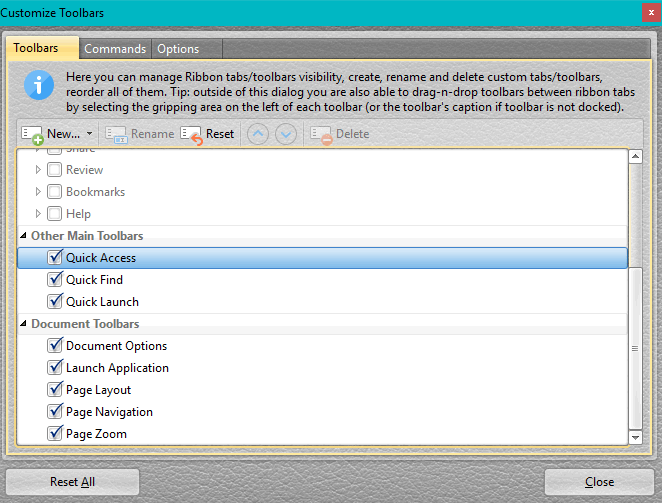
To start customising, right-click on any toolbar and select Customise Toolbars… Uncheck any menus or toolbars that you never use. Add new toolbars if you wish to create your own.
Select the commands tab to edit the shortcuts. Select any command to edit its properties. Start by assigning a shortcut key such as F12 to the Customise Toolbars command itself, then you can quickly refine your custom setups as you get used to the interface. A warning will be given if a shortcut is already assigned to another command.
 A popup in the bottom left corner of the document shows the page dimensions on mouse-over. Tabs can be detached from the main window by dragging, or grouped with other tabs. Tabs can be split horizontally or vertically to provide two views of the same document. There are so many ways to rearrange tabs and tab groups, that I have not figured them out yet. On a 1280 x 1024 monitor, there’s not much to be gained from working with more than one or two tabs at once, but users with large monitors, or multiple monitor setups will find many different ways to configure the workspace.
If you have spent some time getting things just right, save your work by Exporting all PDF-XChange settings from Manage Settings on the File menu.
Customize UI

- The main (workspace) background, the page background, and the dialog background can be modified.
- Select different fonts for menus and toolbars, and for dialogs. Choose a sensible size for the dialog font or your dialogs may grow bigger than the window.
- Choose patterns and colours for workspace backgrounds, select colours for tabs and toolbars, for highlighted menus and toolbar icons. Active and enabled tools will show the highlight background colour.
The text and window colours change the appearance of dialogs and toolbars. To change the appearance of the document use the Accessibility options and override the document colours.
Fullscreen Mode
 If you just want to concentrate on reading, enter the fullscreen mode (F11). Even with the toolbars off, you can switch to other documents with Control Tab, and use the Pan and Zoom Window to navigate the current document. Press Escape or F11 to exit from fullscreen mode, or click the button on the popup toolbar at bottom left of the window.
Tiling, N-up, and Booklet Printing
 Large documents can be tiled onto several sheets. For example, scale an A4 document up by about 187% and print it on four sheets. This powerful feature makes it easy to produce posters from the same standard document used for handouts.
The illustration shows the preview for tile 4 of 4 from an A4 page scaled to 187% with a 4.9 pt overlap between tiles. Click on the image to show all four tiles.
N-up printing allows printing of multiple copies on a single sheet. The document will automatically be scaled down to fit 2, 4, 8 or a custom number of copies onto a single sheet.
The document can be rotated automatically to use the sheets more efficiently.
Booklet printing will automatically arrange a multi-page A4 portrait document for printing as an A5 booklet on A4 landscape.
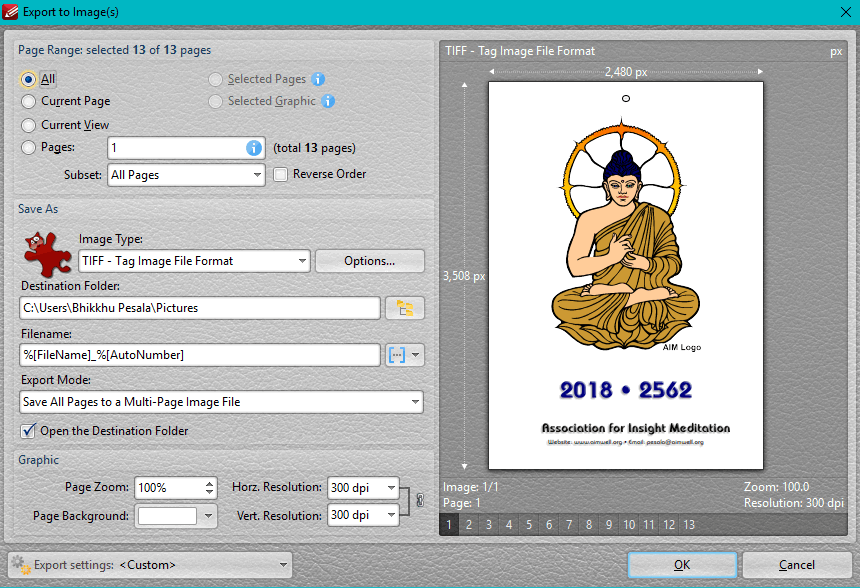
Export any document to a Multi-page TIFF image, or to any of the popular image formats — PNG, GIF, JPG PCX, or BMP — and some other formats I am not familiar with. Set the resolution to 50 dpi or 2,400. Change the page background colour or make it transparent. Automatically assign file names to the images with variables. This very powerful feature is available even in the free version of the Editor. I used it to export 12 pages of my PDF Calendar to 12 JPG images to use as thumbnails on my News Page. Now all I have to do is to remember to update the thumbnail each month.
You can change the default resolution for snapshots from Edit, Preferences, Snapshot Tool, Use Fixed Resolution for snapshot images, to print quality resolutions of 300 or 600 dpi (and up to 2400 dpi) instead of using low screen resolution of 72 or 96 dpi. Then, whenever you use the snapshot tool a high resolution bitmap is copied to the Windows clipboard. This is useful when you wish to capture fine detail from a PDF file. The same resolution is used when you take a snapshot from the Loupe Window or the Pan and Zoom Window.
The options also allow the snapshot to be greyscale. A sound can be played and/or the selected region can flash to confirm that a snapshot has been taken. Either or both options can be disabled.
You can navigate back and forth between different views on the same document. This is very useful for finding your place again after searching for something elsewhere in the document. The shortcuts Alter Left Arrow and Alter Right Arrow are sensible and therefore easy to remember.
 Users with a middle mouse button can scroll quickly through long documents in continuous mode, or scroll in any direction when zoomed in to view a detailed drawing, for example. Click the middle mouse button to place the scroll anchor anywhere on the page, then drag in any direction. Scrolling long documents is fast and smooth, with excellent control.
Use the Autoscroll feature (default shortcut Ctrl+Shift+H) to scroll quickly through long documents using the keyboard. Use the Up and Down cursor keys to increase/decrease the autoscrolling speed, and the minus key to reverse the direction.
PDF-XChange remembers the previous view of each document. On reopening a document, whether from Windows Explorer or from the recent files menu, it reopens at the same place as last time, and at the same zoom level. This is a huge time saver.
 Favourite files can be pinned to the Recent Files list, and recently opened files can be deleted from the list. There doesn’t seem to be a limit to the number of recent files remembered. The number of pinned and recently opened files is shown on the Open file fly-out.
Recently opened files can be managed via the Manage History and Recents button or in Preferences, Documents. The number of files retained in history, and/or the duration in days to keep them in history can be set. The number of files to display on the recent files list can also be set here.
The Manage Recent Files list lets you move pinned files to the top of the list, show extended tool-tips (with previews), set the confirmation before clearing the list, clear the list on exit, and if any recently opened files have been deleted, they can be cleared from the list by using the option to remove all broken.
PDF-XChange Viewer has reached the end of its development and is now replaced by the Editor, which is still free to use except for Pro features. It is noticeably faster than Adobe Reader.
For the most commonly used features there are no banners, no watermarks on documents, and no limitations or restrictions. There is an excellent support forum where the developers respond promptly to any problems. Bugs are usually fixed quickly with frequent updates.
This one is a keeper. Download it now. You may never open Adobe Reader again unless you need to open some special PDF files. If you regularly work with large numbers of documents I recommend avoiding Adobe Reader. On old hardware it is so slow as to be almost unusable.
I recommend using the Editor as your default program for PDF files.
Page last updated on 15 June 2026